




Building a Multi-Monitor Workstation with a Mini PC: A Complete Guide
A single monitor is no longer enough for many modern professionals.
Whether you're editing videos, writing code, analyzing financial data, designing graphics, or managing multiple business applications, additional screen space can significantly improve productivity.
The good news is that you no longer need a large desktop tower to build an efficient workstation.
Modern Mini PCs provide powerful processors, advanced graphics, and multiple display outputs, making them an ideal foundation for a professional multi-monitor setup.
Why Multiple Monitors Improve Productivity
Using multiple displays allows you to organize your workspace more effectively.
Instead of constantly switching between windows, each monitor can be dedicated to a specific task.
Common examples include:
- Main application on one screen
- Email and communication tools on another
- Reference documents or web research on a third display
- Monitoring dashboards or analytics on an additional monitor
This reduces interruptions and helps maintain focus throughout the workday.
Who Benefits from a Multi-Monitor Workstation?
A multi-display setup is valuable across many industries.
Professionals who commonly use multiple monitors include:
- Software developers
- Video editors
- Graphic designers
- Financial analysts
- Engineers
- Architects
- Digital marketers
- Content creators
- Customer support teams
- Business professionals
Each profession benefits from having dedicated screen space for specialized workflows.
Choosing the Right Mini PC
Not every Mini PC is designed for multi-monitor productivity.
When selecting a system, consider the following:
- Powerful multi-core processor
- Modern integrated or dedicated graphics
- High-speed memory
- PCIe NVMe SSD storage
- Multiple video output options
- Reliable networking
These components ensure smooth performance when driving several displays while running demanding applications.
Understanding Display Connectivity
Before connecting multiple monitors, it's important to understand the available display interfaces.
Modern Mini PCs commonly include:
- HDMI
- DisplayPort
- USB4
- Thunderbolt™ 4
Each interface supports different resolutions, refresh rates, and display configurations.
Choosing the appropriate connection depends on your monitor specifications and workflow requirements.
Planning Your Workspace
An efficient workstation is about more than simply adding extra monitors.
Consider the following when designing your setup:
- Position monitors at eye level
- Align displays to reduce neck movement
- Keep frequently used screens directly in front
- Use monitor arms when possible
- Organize cables for a clean workspace
A well-planned desk layout improves comfort during long working sessions.
Optimizing Display Arrangements
Different workflows benefit from different monitor layouts.
Popular configurations include:
- Dual-monitor setup for everyday office work
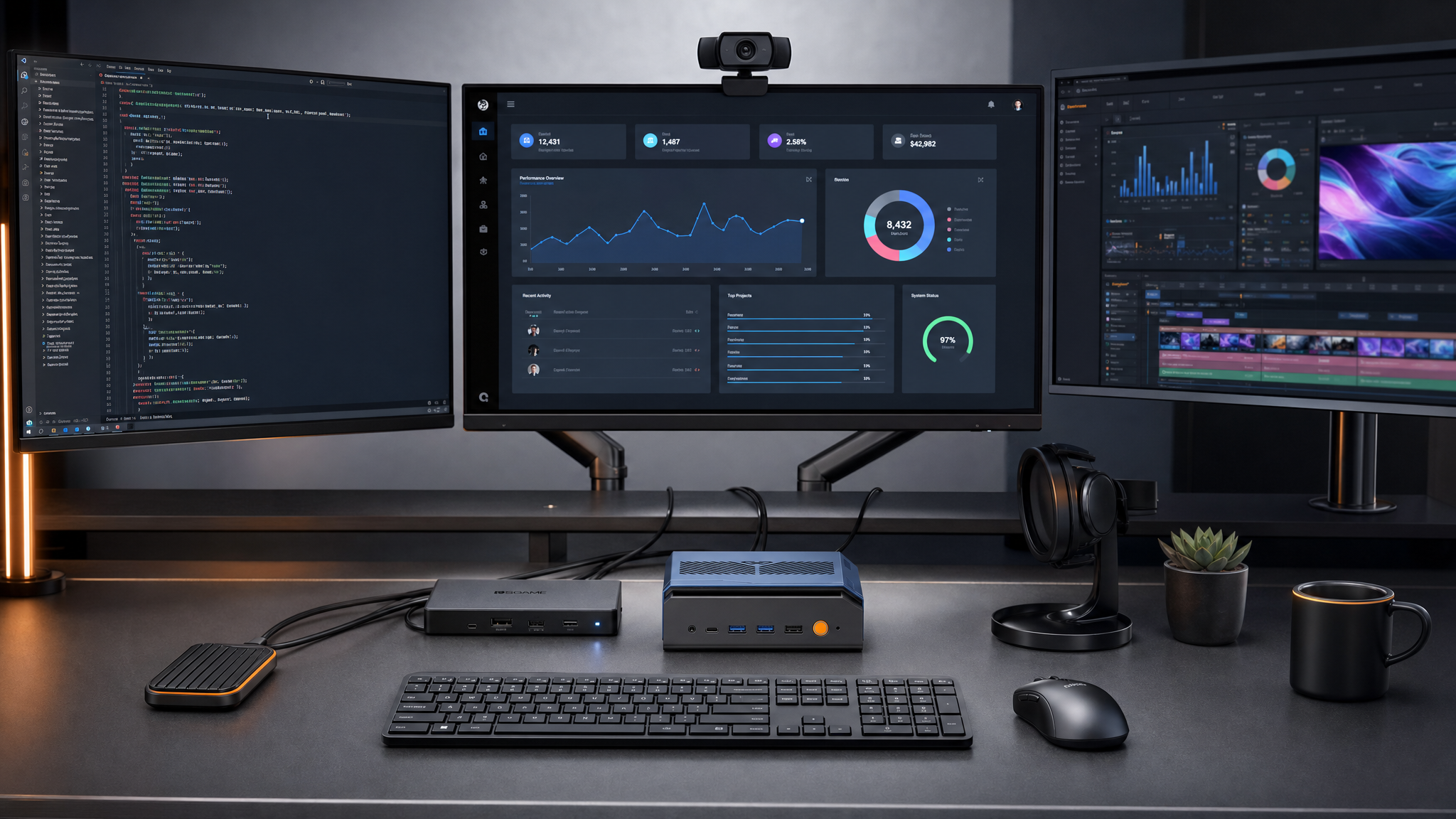
- Triple-monitor setup for programming and creative applications
- Large central display with two side monitors for multitasking
- Vertical monitor for coding, reading, or document editing
Experimenting with monitor placement helps create a workspace tailored to your daily tasks.
Accessories That Improve Productivity
Several accessories can further enhance a multi-monitor workstation.
Useful additions include:
- Adjustable monitor arms
- Wireless keyboard and mouse
- USB docking station
- External storage
- High-quality webcam
- Noise-canceling headset
These accessories help create a cleaner and more efficient working environment.
AI-Powered Productivity Across Multiple Screens
Artificial intelligence is becoming part of everyday workflows.
Many professionals now use AI tools alongside their primary applications.
Examples include:
- AI writing assistants
- Meeting transcription tools
- Image generation software
- Intelligent document search
- Coding assistants
Having multiple displays allows AI applications to remain visible while users continue working in their main software, reducing interruptions and improving workflow efficiency.
Future-Proofing Your Workstation
As software becomes more demanding, choosing hardware that supports future expansion is increasingly important.
Look for features such as:
- High-resolution display support
- Thunderbolt™ 4 or USB4
- Fast networking
- Additional storage expansion
- Modern graphics architecture
These technologies help ensure your workstation remains capable as professional workflows continue to evolve.
Conclusion
A well-designed multi-monitor workstation can dramatically improve productivity, organization, and overall comfort at work.
Thanks to advances in processor performance, graphics technology, and modern display connectivity, today's Mini PCs are fully capable of powering professional multi-display environments without the size and complexity of traditional desktop towers.
Whether you're building a home office, creative studio, or business workspace, a Mini PC offers a compact and efficient foundation for a flexible, future-ready workstation.