



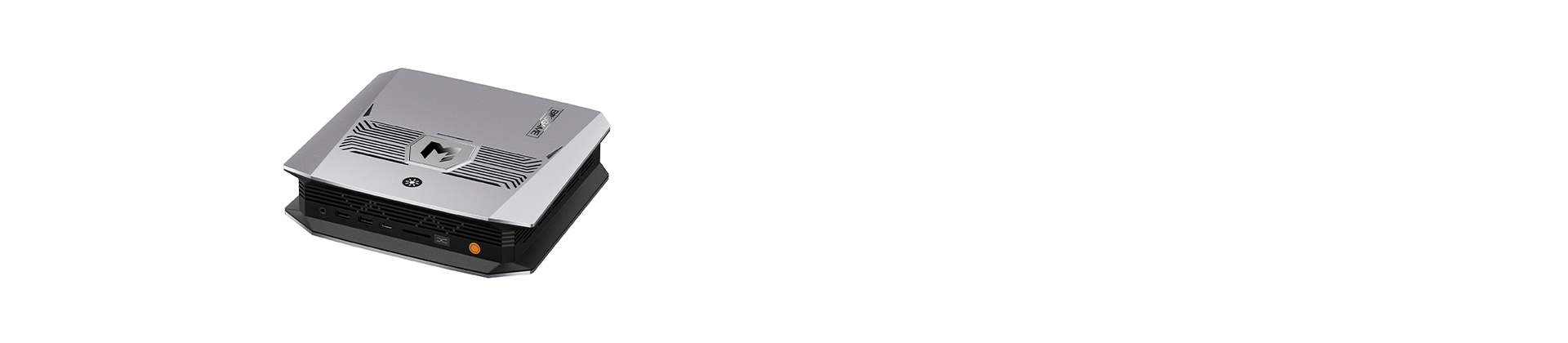


Choosing computers for a business is not simply about finding the fastest processor at the lowest price. The right system should handle daily workloads, connect to essential equipment, and remain practical to deploy and maintain. Before purchasing, compare these five areas.
1. Match Processor Performance to the Workload
Start with the applications employees use. Email, document editing, web-based tools, and video meetings generally do not require a high-end processor. An entry-level or mid-range CPU can be sufficient when paired with enough memory and a fast SSD.
Customer service teams may keep databases, browser tabs, and communication tools open at once. Retail workstations may run point-of-sale software alongside scanners and receipt printers. For design software, code compilation, or other demanding applications, check the software’s CPU and graphics requirements first. Matching hardware to actual workloads helps avoid both underpowered systems and unnecessary spending.
2. Check Ports, Networking, and Display Support
A business computer may connect to printers, scanners, external drives, networks, and multiple monitors. Check the number and type of USB-A and USB-C ports, HDMI or DisplayPort outputs, audio connections, and Ethernet ports. Also confirm whether USB-C supports video; not every USB-C port offers the same functions.
A 2.5G LAN port can be useful with compatible networking equipment, especially for large transfers to a NAS or local server. Dual LAN ports may support separate network connections or specific deployment setups, depending on network configuration. For multi-monitor work, confirm the supported display count and resolution. Multiple video ports do not guarantee every display combination works simultaneously.
3. Choose Enough Memory and Storage
RAM affects how comfortably a Mini PC can run multiple applications. For general office work, 16GB is a sensible starting point. Employees using large spreadsheets, many browser tabs, or several business applications may benefit from 32GB. Development and content creation may require more, depending on the software.
Storage depends on where the business keeps its files. A 512GB SSD may be adequate when documents are mainly stored in the cloud, while 1TB offers more room for local files and applications. Check whether memory and storage are upgradeable, and confirm the supported capacity and memory type before planning an upgrade.
4. Understand Power, Cooling, and Placement
For computers that run throughout the workday, consider power use, cooling, and noise—not just the processor’s advertised TDP. TDP is a thermal design rating, not actual power consumption at the wall. Real power draw changes with workload, power settings, connected devices, and system design. If energy cost matters, compare measured idle and typical-load power for the exact configurations you plan to buy.
A Mini PC can be mounted behind a monitor or placed on a counter, but it still needs room to release heat. Check chassis dimensions, VESA compatibility, ventilation openings, and clearance. Avoid blocking vents or placing the system in an enclosed space, where restricted airflow can increase temperatures and fan noise.
5. Check Compatibility and Business Support
Confirm that the Mini PC supports your operating system, business applications, peripherals, and required drivers. For multiple-unit purchases, using the same model and configuration can simplify deployment and troubleshooting. Check BIOS update availability, warranty terms, and technical support before ordering.
Which BOSGAME Mini PC Should You Consider?
For everyday office tasks, the BOSGAME E6 ECO offers an Intel Core 3 304 processor, 12GB LPDDR5X memory, and a 512GB SSD. It suits web browsing, document management, email, and routine productivity, particularly where desk space is limited.
For connected business workstations, the BOSGAME E7 combines an Intel Core 3 100U processor with 16GB DDR4-3200 memory and a 512GB PCIe 3.0 NVMe SSD. Dual 2.5G LAN ports, triple-display support, full-function USB-C, and memory expansion up to 64GB make it suitable for customer service desks and multi-monitor offices. Wake-on-LAN and auto power-on can also support certain managed deployments.
For businesses that need more processor headroom and local storage, the BOSGAME P4 Ultra features an AMD Ryzen 7 7730U processor, 16GB DDR4 memory, and a 1TB NVMe SSD. Its dual 2.5G LAN ports and multi-display support suit workstations combining heavier multitasking with flexible networking. Choose based on the applications your team runs rather than assuming one model fits every role.
Conclusion
The best business Mini PC is not necessarily the most powerful one. Choose a processor for your applications, check that the ports and network connections fit your workspace, and allow enough memory and storage for daily tasks. Also consider measured power use, ventilation, upgrade options, and support. Matching the configuration to the job can help avoid unnecessary costs while giving employees a dependable workstation.