




Looking for a Mini PC for content creation? Start with the work you need it to do, not just the numbers on a spec sheet.
From editing 4K footage and enhancing photos to creating graphics and running local AI applications, different creative tasks require different hardware resources. Knowing how the processor, graphics, memory, storage, and cooling work together makes it easier to find a system that fits your needs and budget.
1. Identify Your Main Creative Tasks
Before comparing Mini PCs, identify your main applications and typical projects. Photo editing often depends on memory capacity and storage responsiveness, while video production can place heavier demands on processing power and graphics performance.
Editing RAW images in Adobe Lightroom Classic, for instance, creates a different workload from handling complex 4K sequences in Adobe Premiere Pro. Your software, file sizes, effects, and multitasking habits should guide your hardware choices.
2. CPU Performance: How Much Processing Power Do You Need?
The processor influences system responsiveness, multitasking, and rendering or export times. A higher core count can help with parallel workloads, but clock speed, architecture, thermal management, and software optimization also contribute to overall performance.
For demanding 4K editing projects, a modern CPU with eight or more cores is a reasonable starting point to consider. However, simpler editing tasks may run well with fewer cores. Adobe Premiere Pro uses the CPU for tasks including decoding and encoding, whereas DaVinci Resolve can make extensive use of GPU acceleration for supported effects.
When running local AI applications, GPU performance and available memory can be more important than CPU core count alone. Compare your intended applications with the system specifications before making a decision.
3. Graphics: What to Check Before Choosing a GPU
Graphics performance matters when working with GPU-accelerated effects, rendering, 3D content, and supported AI applications. Integrated graphics can handle many everyday creative tasks, but more demanding projects may benefit from more capable graphics hardware.
Check the recommended GPU specifications for your software. Graphics memory can affect how comfortably large assets and complex effects run, while GPU architecture and application compatibility also influence results.
4. RAM and Unified Memory: Choosing the Right Capacity
Memory requirements increase when working with large images, layered compositions, complex video timelines, or several demanding applications at once. If these tasks are part of your regular workflow, choose a configuration with enough memory to accommodate them.
Mini PCs differ in how memory is implemented. Some use unified memory shared by the CPU and GPU, while others provide separate system RAM and graphics memory. Consider total capacity, memory architecture, and upgradeability together instead of judging a system by capacity alone.
5. Storage: How Much SSD Space Is Enough?
Video footage, source images, project files, and exports can quickly fill a drive. An SSD helps reduce file-loading times, but choosing the right capacity and interface is equally important.
Review the included storage and available expansion options. A PCIe 4.0 slot cannot make a PCIe 3.0 SSD run at PCIe 4.0 speeds. For growing projects, an external SSD or network storage can also help separate active work from archived files.
6. Ports, Displays, and Thermal Performance
Make sure the Mini PC has the ports required for your peripherals, displays, and network connections. If your setup includes multiple monitors, check the supported display configurations and resolutions rather than relying on the number of physical outputs alone.
Thermal performance is another consideration for sustained workloads. Long rendering sessions and repeated exports can reveal limitations that short benchmark tests may not show, so look for reviews that assess performance over time.
7. Comparing Mini PCs for Different Creative Needs
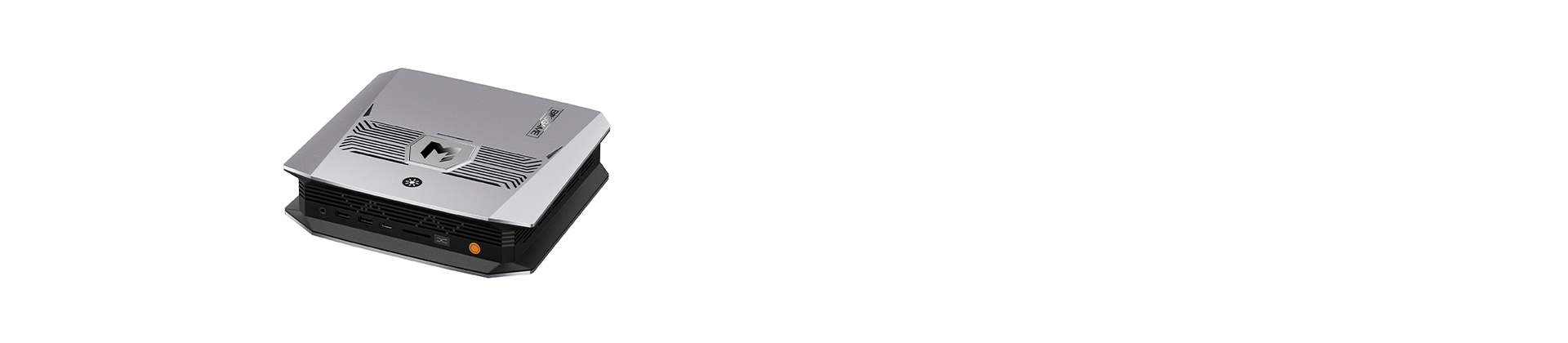
For lighter creative work, such as basic photo editing, preparing content, and everyday multitasking, the BOSGAME E6 ECO offers an Intel Core 3 304 processor, 12GB of onboard LPDDR5X memory, and a 512GB SSD. This configuration is worth considering for routine creative tasks and general productivity.
Users who need more flexibility for multitasking and memory-intensive applications may prefer the BOSGAME M6. It pairs an AMD Ryzen AI 9 HX 370 processor with Radeon 890M graphics and provides two SO-DIMM slots supporting up to 96GB of DDR5 memory at speeds of up to 5600MT/s. This allows room for memory upgrades as project demands evolve.
For more demanding creative applications and compatible local AI workloads, the BOSGAME M5 MAX combines an AMD Ryzen AI Max+ PRO 495 processor, AMD Radeon 8065S graphics, and unified LPDDR5X memory shared between the CPU and GPU. The 192GB memory configuration with a 2TB PCIe 4.0 SSD is expected to launch in November 2026.
Conclusion
Choosing the right Mini PC comes down to matching its capabilities with your applications, current projects, and future plans. A balanced configuration that supports your actual workflow is often a better investment than paying for specifications you will rarely use.